GOTO + DOGEAR · XTEINK X4 · microSD update
firmware-x4-gd.bin Installation guide · microSD updater Release notes
SHA-256 12219e45ca9e559b4d0e3ddb16e9326bcb984e3cb7d415f2d3e619e3126d9f00
Project
A limited weekly reading digest.
DOGEAR is a short weekly issue about books and the people who write them: writers, books, literary anniversaries and discoveries worth revisiting. It is published on the web and for the XTEINK X4 and X4 Pro, in compact reading screens made for their e-ink displays. Read the week’s handful of entries, and scan a QR code if you want the full edition on your phone.
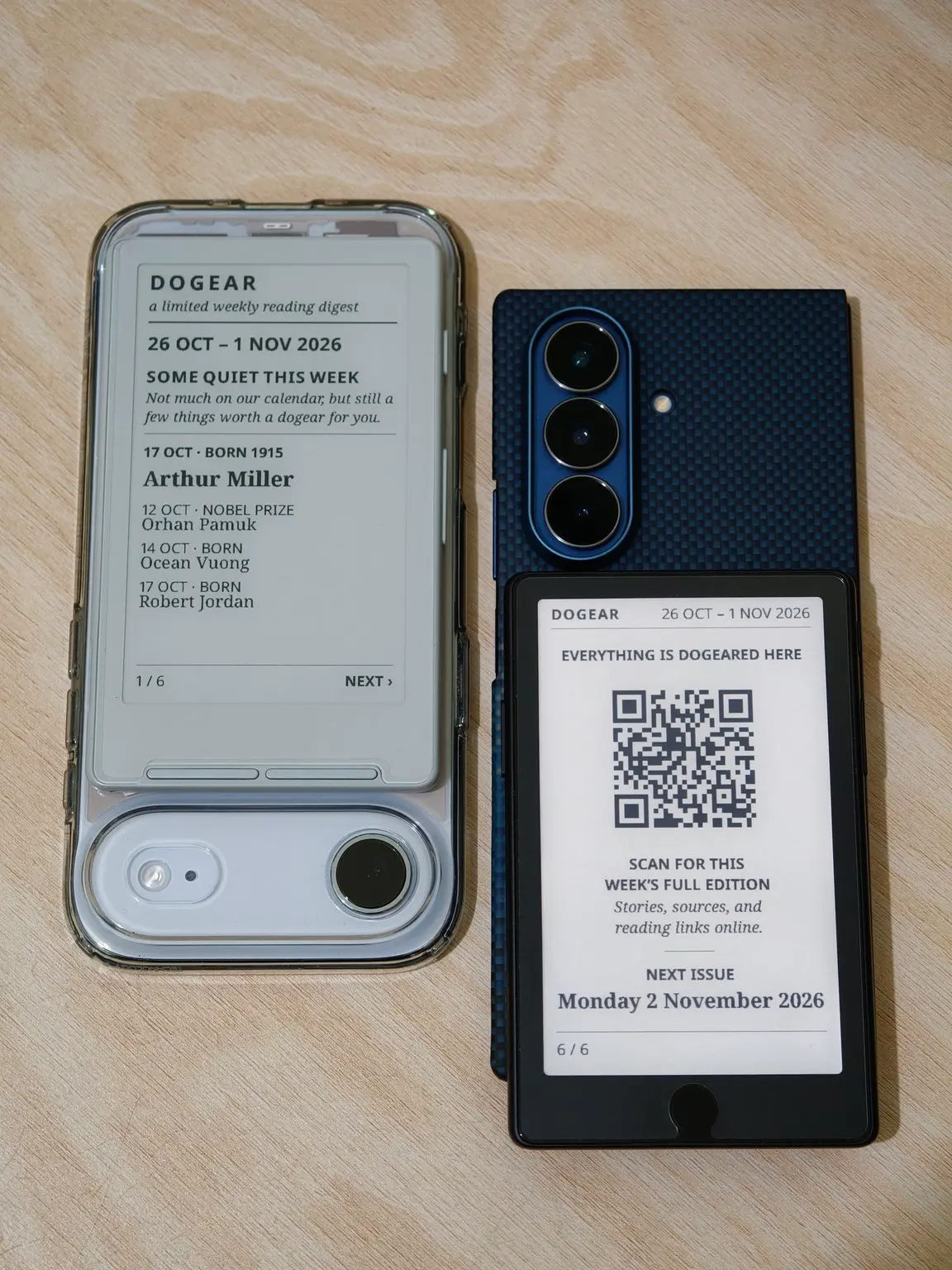
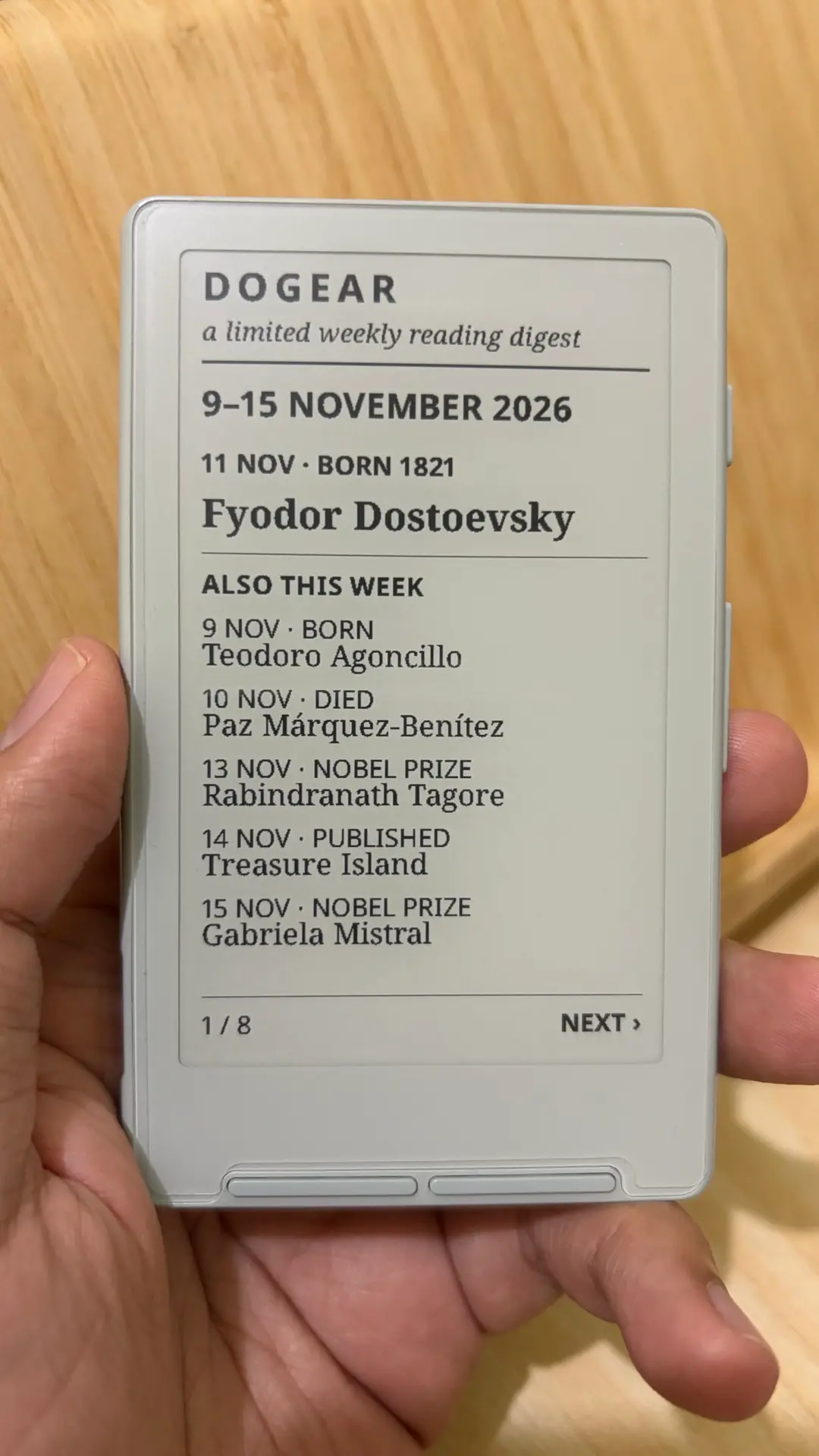
A new issue arrives every Monday, covering that week. Each one is a small, chosen set of entries from a curated calendar of literary dates: writers’ births and deaths, books and their publication, prizes and other literary anniversaries, and the occasional discovery. The cover lists the week, and each entry gets a screen of its own. Some weeks are quieter than others, and the issue says so rather than filling the space. Once you reach the end, you are done until next Monday.
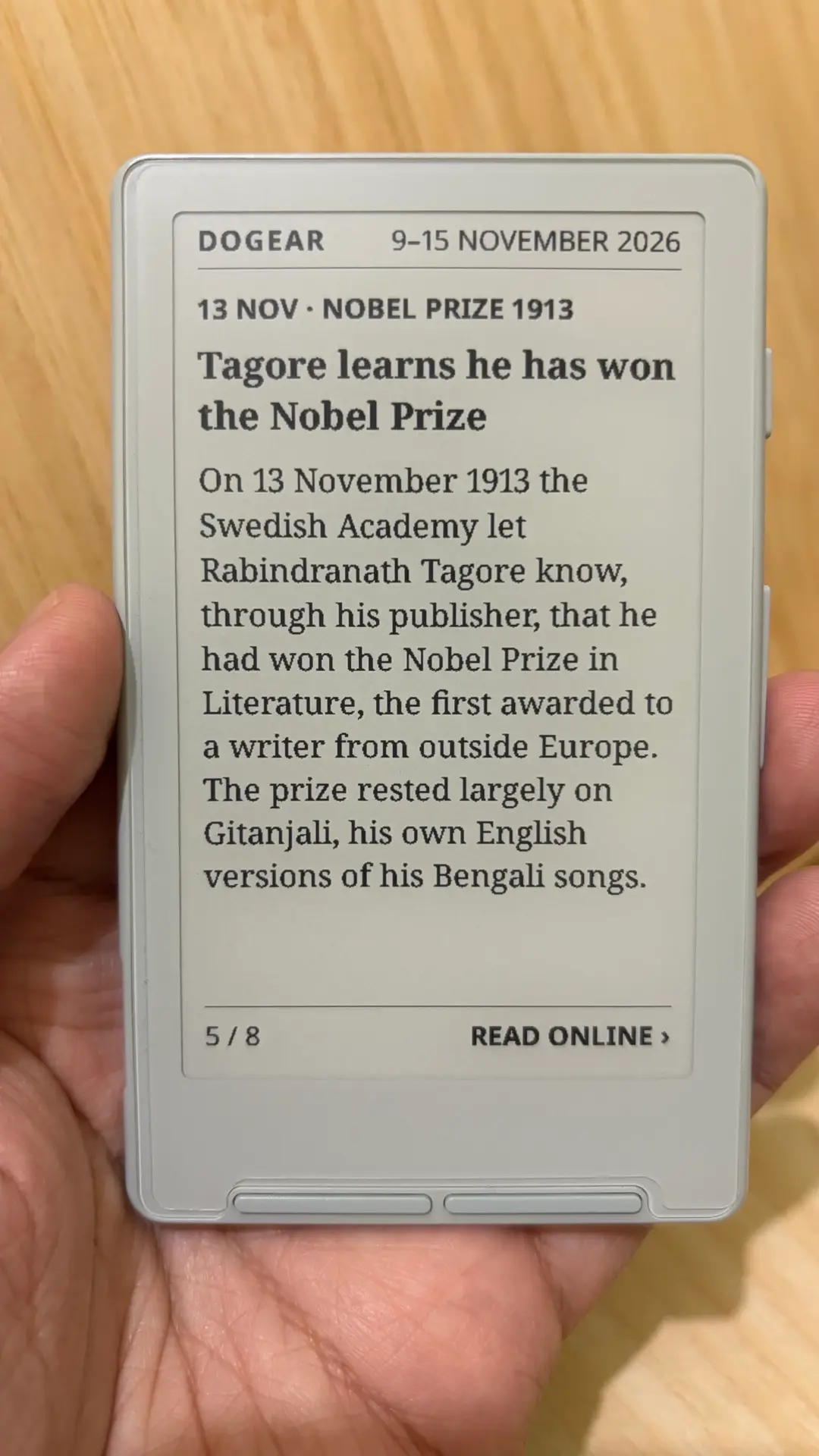
The issue ends with one QR code that opens the week’s full edition on the web: the stories in full, their sources, and reading links. You can also read every issue at dogear.archievalmariano.com .
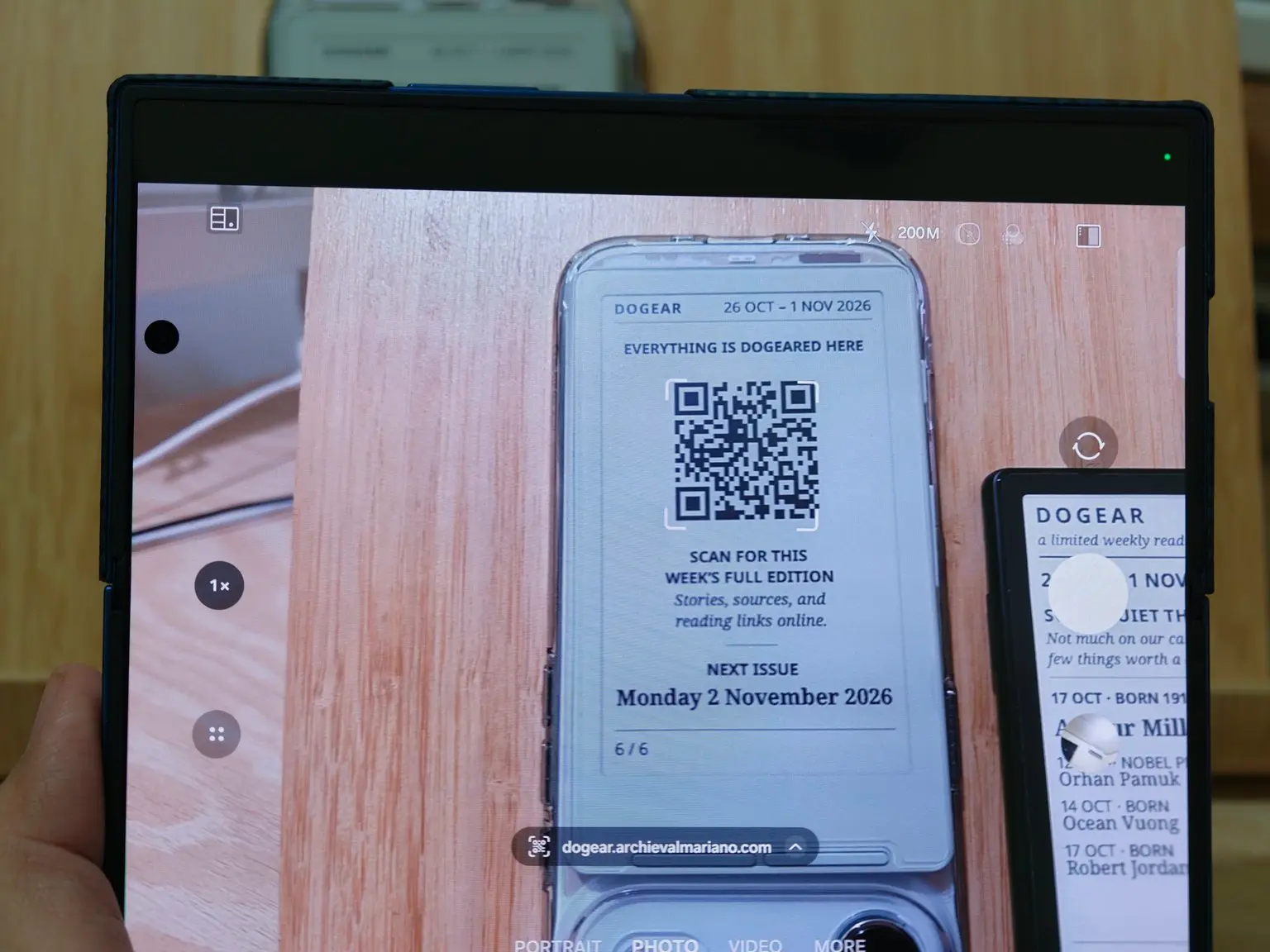
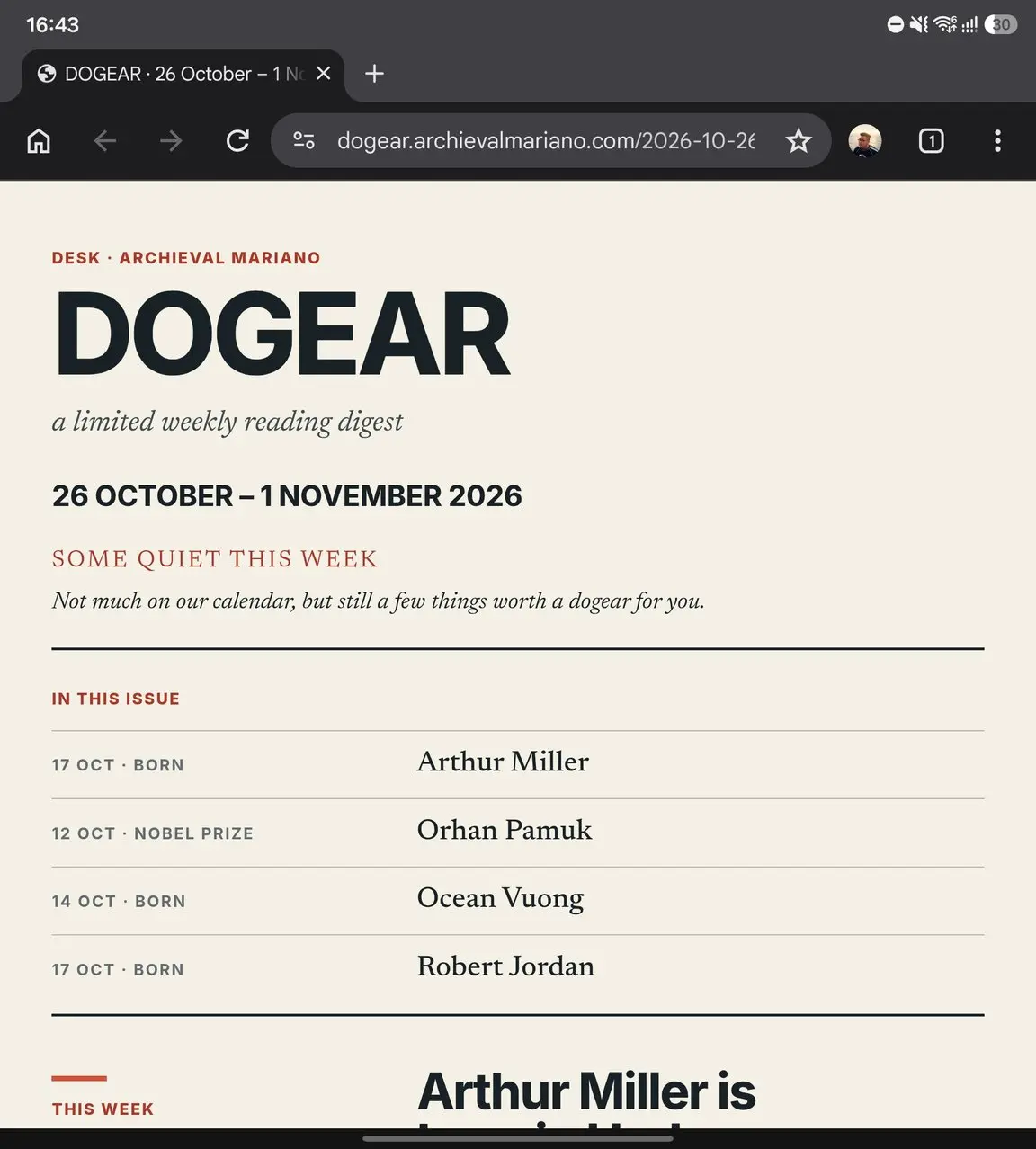
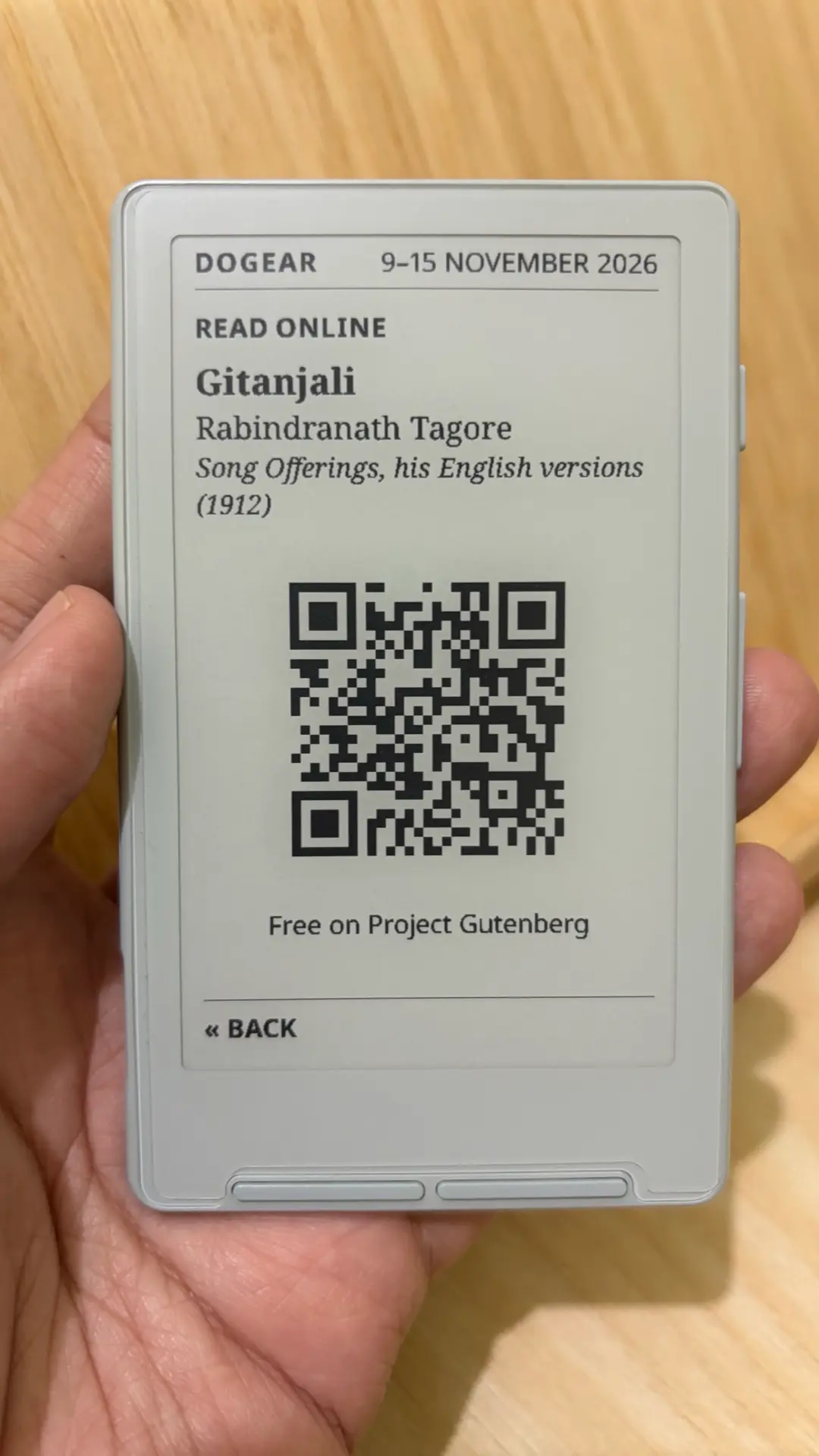
Some entries go further than the story. When a book is free to read online, the entry links straight to it: in the 19 October 2026 issue , Oscar Wilde’s entry carried a READ ONLINE link to The Picture of Dorian Gray on Project Gutenberg , which on the device opens as a QR code of its own. Other entries lead somewhere worth reading next, such as the Nobel Prize page for that year’s laureate or a biography, and some have no link at all.
A free-reading link is offered only for an edition that is in the public domain everywhere. Some books on Project Gutenberg are public domain in the United States but not in every country, and DOGEAR doesn’t link those.
Runs on the XTEINK X4 and XTEINK X4 Pro running CrossPoint Reader. DOGEAR presents the same weekly literary digest in layouts adapted to each device’s screen. Not sure which you have? The X4 Pro has a touchscreen and a warm/cool frontlight; the original X4 does not.
XTEINK official store
Affiliate link. I may earn a commission on qualifying purchases.
DOGEAR comes in the packages that name it, together with GOTO, ON POINT or both. On the X4 that is GOTO + DOGEAR, installed from a microSD card on v1.4.0; on the X4 Pro, choose any of the three, installed over USB on v1.5.0. After installing, DOGEAR lives in the Apps menu on the CrossPoint home screen, and later releases install over Wi-Fi from Settings → System → Check for updates, keeping the package you chose. If you already run GOTO or ON POINT, install a DOGEAR package once by hand to add it.
firmware-x4-gd.bin Installation guide · microSD updater Release notes
SHA-256 12219e45ca9e559b4d0e3ddb16e9326bcb984e3cb7d415f2d3e619e3126d9f00
firmware-x4pro-gd.factory.bin Installation guide · USB (esptool) Release notes
SHA-256 ae68381551e31901d467fbe585ff797698c1ba3911c573c35a9cc0c406dcddac
firmware-x4pro-pd.factory.bin Installation guide · USB (esptool) Release notes
SHA-256 b0768b1116fa1123f4097d025f530bc710651184a4adea84544aa6a92a8bbca6
firmware-x4pro-gpd.factory.bin Installation guide · USB (esptool) Release notes
SHA-256 b5d9ce1cb641ff59d16e45a1e6a8009b591b90ec77cf1fe4a1ea3c02627ad10d
firmware-x4-gd.bin.The X4 installation guide covers each step with photos. It is written for GOTO, and the steps are the same with the DOGEAR file.
/dev/cu.usbmodem101; the guide below covers Linux and Windows.
0x0 with esptool, replacing the port with yours.
GOTO + DOGEAR
esptool --chip esp32s3 --port /dev/cu.usbmodem101 --baud 921600 write_flash 0x0 firmware-x4pro-gd.factory.binON POINT + DOGEAR
esptool --chip esp32s3 --port /dev/cu.usbmodem101 --baud 921600 write_flash 0x0 firmware-x4pro-pd.factory.binGOTO + ON POINT + DOGEAR
esptool --chip esp32s3 --port /dev/cu.usbmodem101 --baud 921600 write_flash 0x0 firmware-x4pro-gpd.factory.bin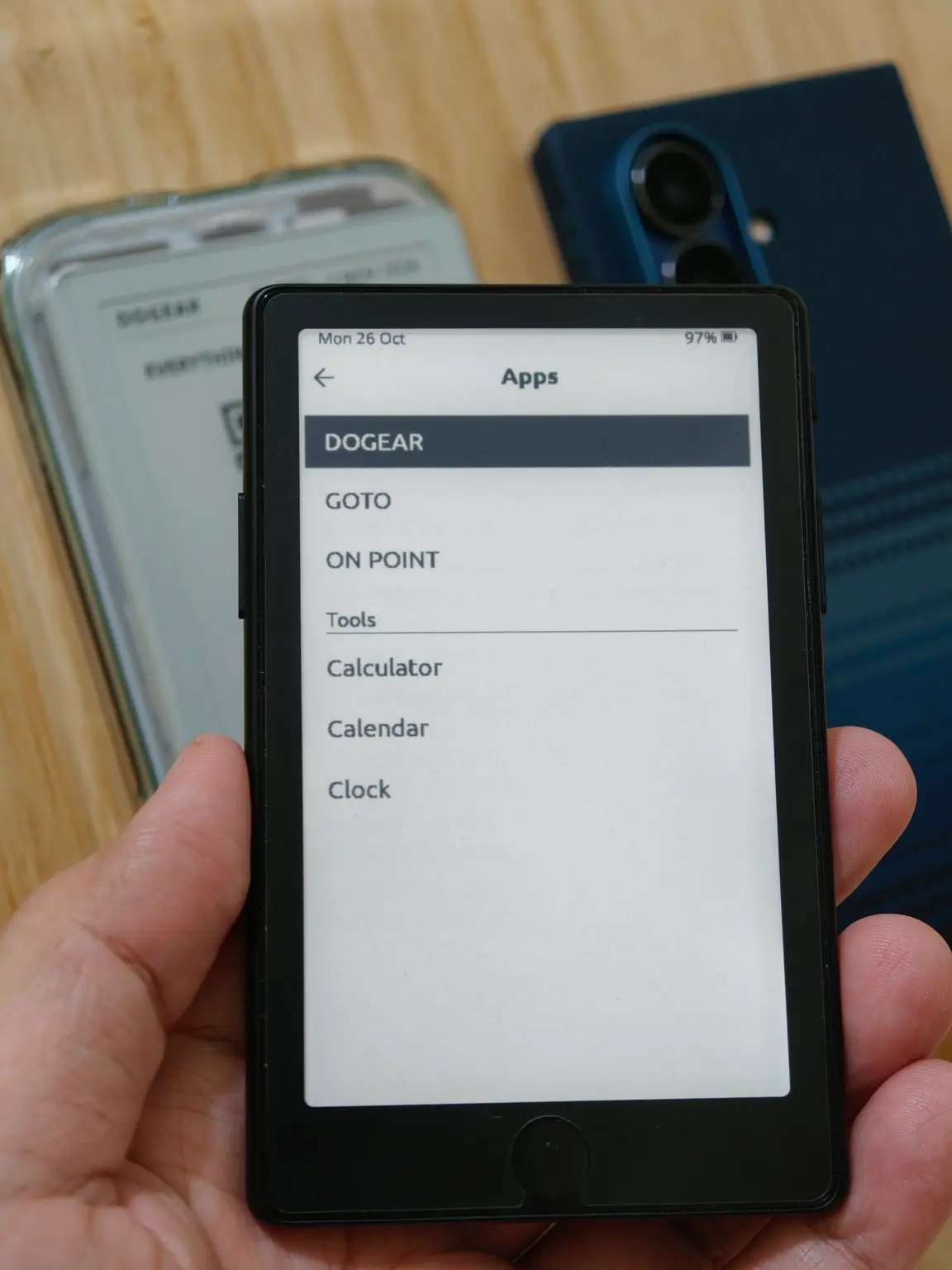
The X4 Pro USB guide covers installing esptool, finding the port and troubleshooting. It is written for GOTO, and the steps are the same with the DOGEAR file.
Flashing a factory image replaces the internal firmware and may reset settings and saved Wi-Fi. Your microSD card is not affected.
DOGEAR downloads the week’s issue over Wi-Fi. If Wi-Fi is not connected when you open it, it opens CrossPoint’s Wi-Fi screen first. Connect for the latest issue, or press Back to read the last saved one, marked CACHED.
DOGEAR is an independent project. The web edition lists the sources for each entry, and the books and pages it links to remain with their publishers.
Part of Archieval Mariano’s e-ink / CrossPoint projects.