Project GOTO
Install Project GOTO on the XTEINK X4
Project GOTO is built for the XTEINK X4 running CrossPoint Reader 1.6.0. The current release is v1.0.6 (CrossPoint 1.6.0 + Apps 1.0.6), with GOTO in the Apps menu.
Installation uses CrossPoint Reader’s built-in SD card firmware updater. You do not need to run a server, clone a repository, or configure the hosted service.
What you need
- an XTEINK X4
- CrossPoint Reader already installed
- a microSD card readable by the X4
firmware-x4-g.bin- Wi-Fi for retrieving the current edition
This file is for the original XTEINK X4. The X4 Pro installs over USB instead: see the X4 Pro guide.
1. Copy the firmware to the microSD card
Download firmware-x4-g.bin and place it in the root of the
microSD card, not inside a folder.
If you already keep an official CrossPoint X4 firmware image on the card, you may leave it there as the intended rollback option.
macOS:
COPYFILE_DISABLE=1 cp firmware-x4-g.bin "/Volumes/<YOUR_SD>/"
If a ._firmware-x4-g.bin file appears, remove it before
ejecting the card.
Safely eject the microSD card, then insert it into the X4.
Optional: verify the download
The file’s SHA-256 checksum should be:
6a5ce28338545ab869401a9543317484e48b6863b567be3321d4085417680c12macOS:
shasum -a 256 firmware-x4-g.binLinux:
sha256sum firmware-x4-g.bin2. Open the firmware updater
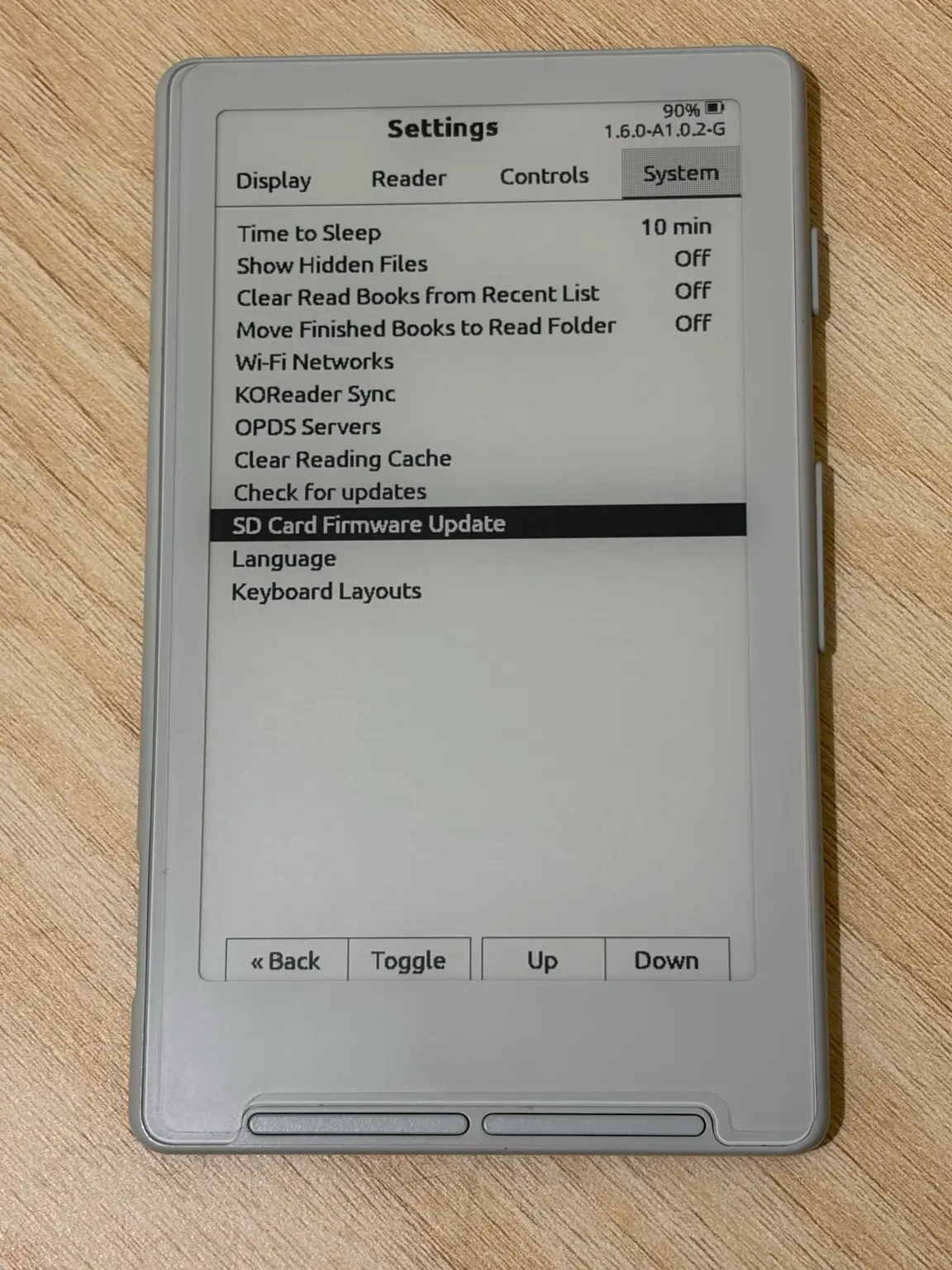
On the X4, open Settings → System → SD Card Firmware Update.
3. Select the Project GOTO firmware
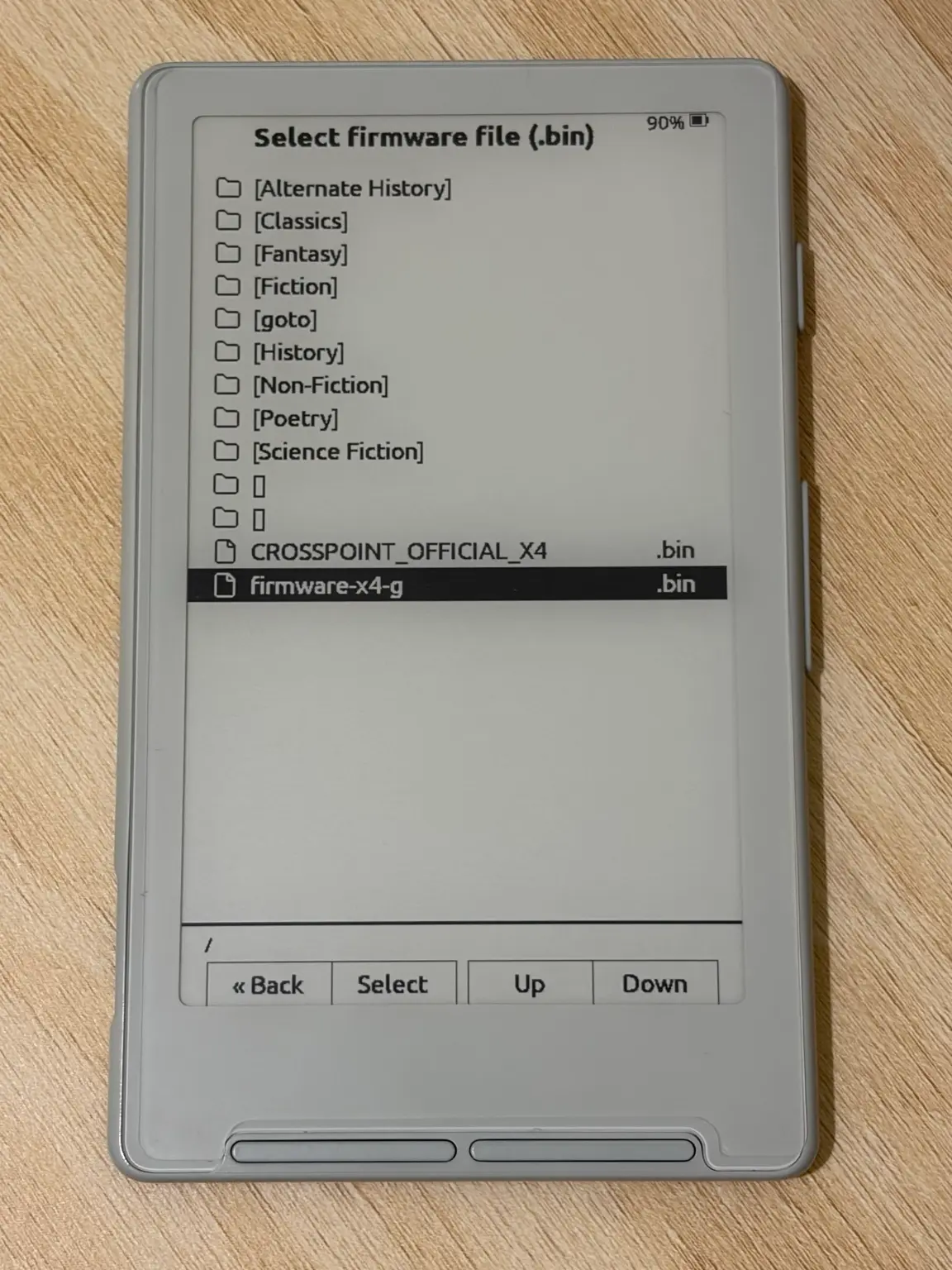
In the firmware picker, select firmware-x4-g.bin.
4. Confirm the update
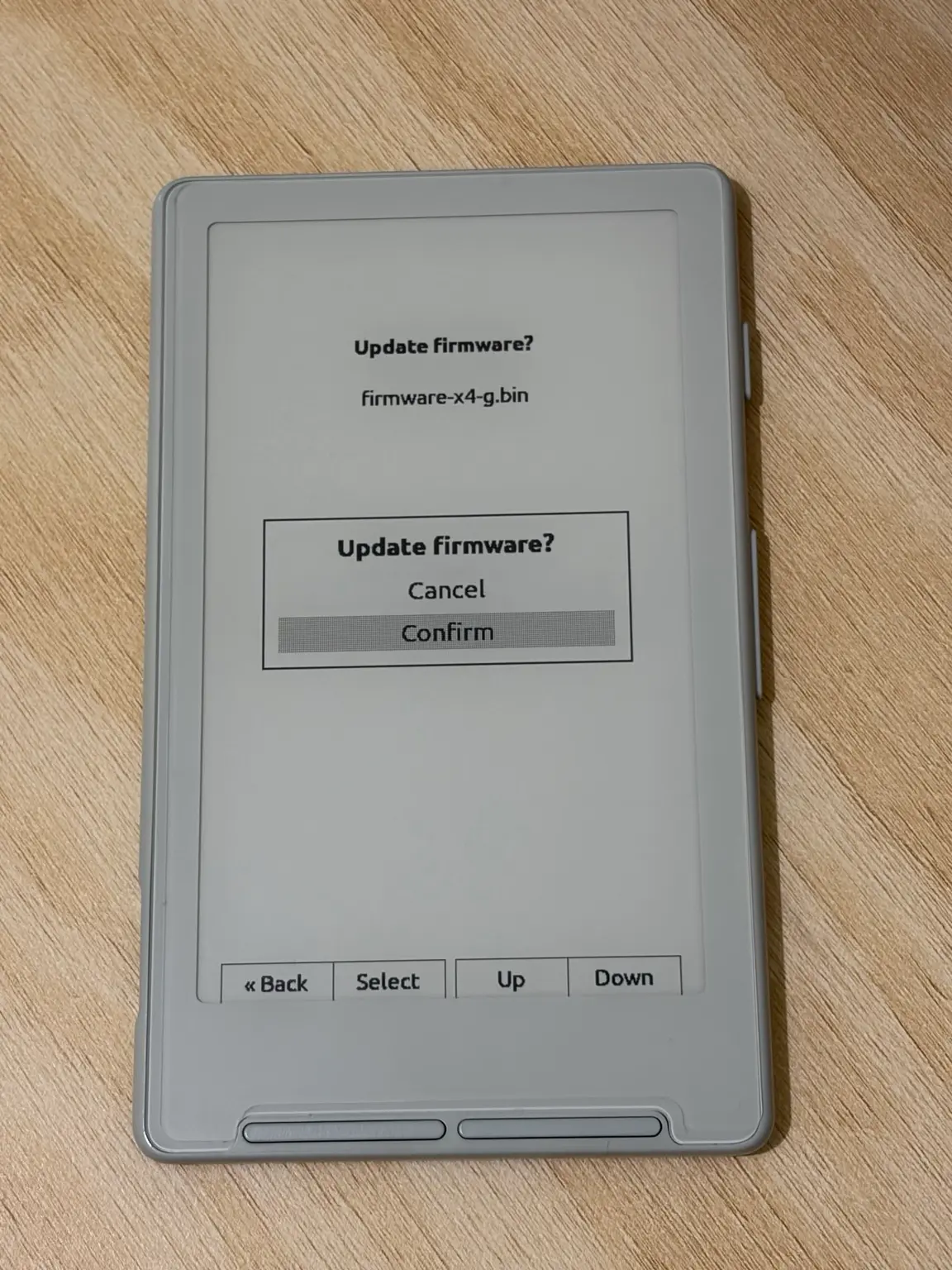
The X4 will validate the firmware and show a confirmation screen. Check that
the filename is firmware-x4-g.bin, then select Confirm.
5. Wait for installation to finish
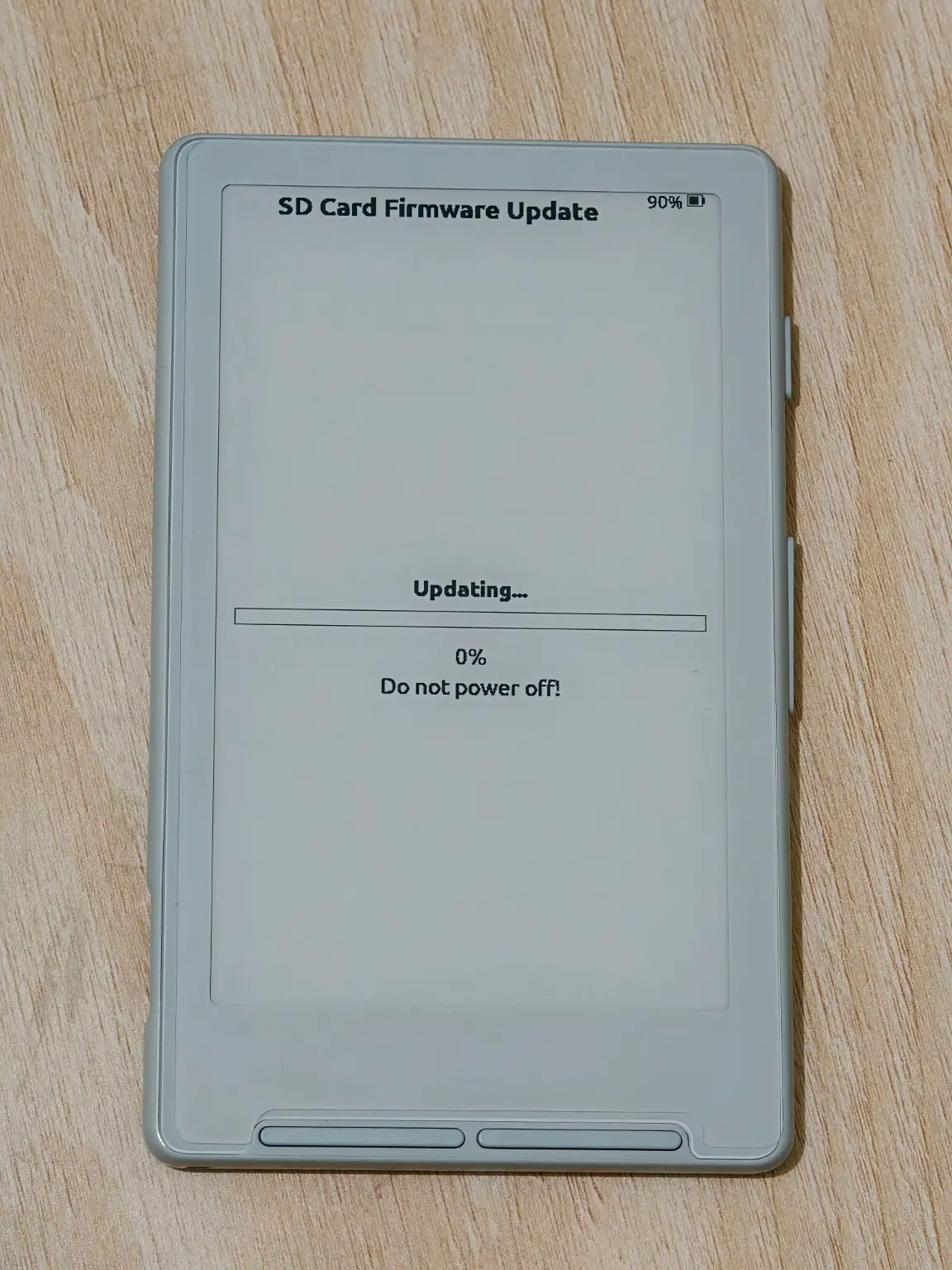
The X4 will begin installing the firmware.
Do not power off the device while the update is in progress.
6. Let the X4 restart
When installation finishes, the X4 will display Update complete and restart.
If it does not restart automatically, follow the on-screen instruction and hold the power button for a few seconds.
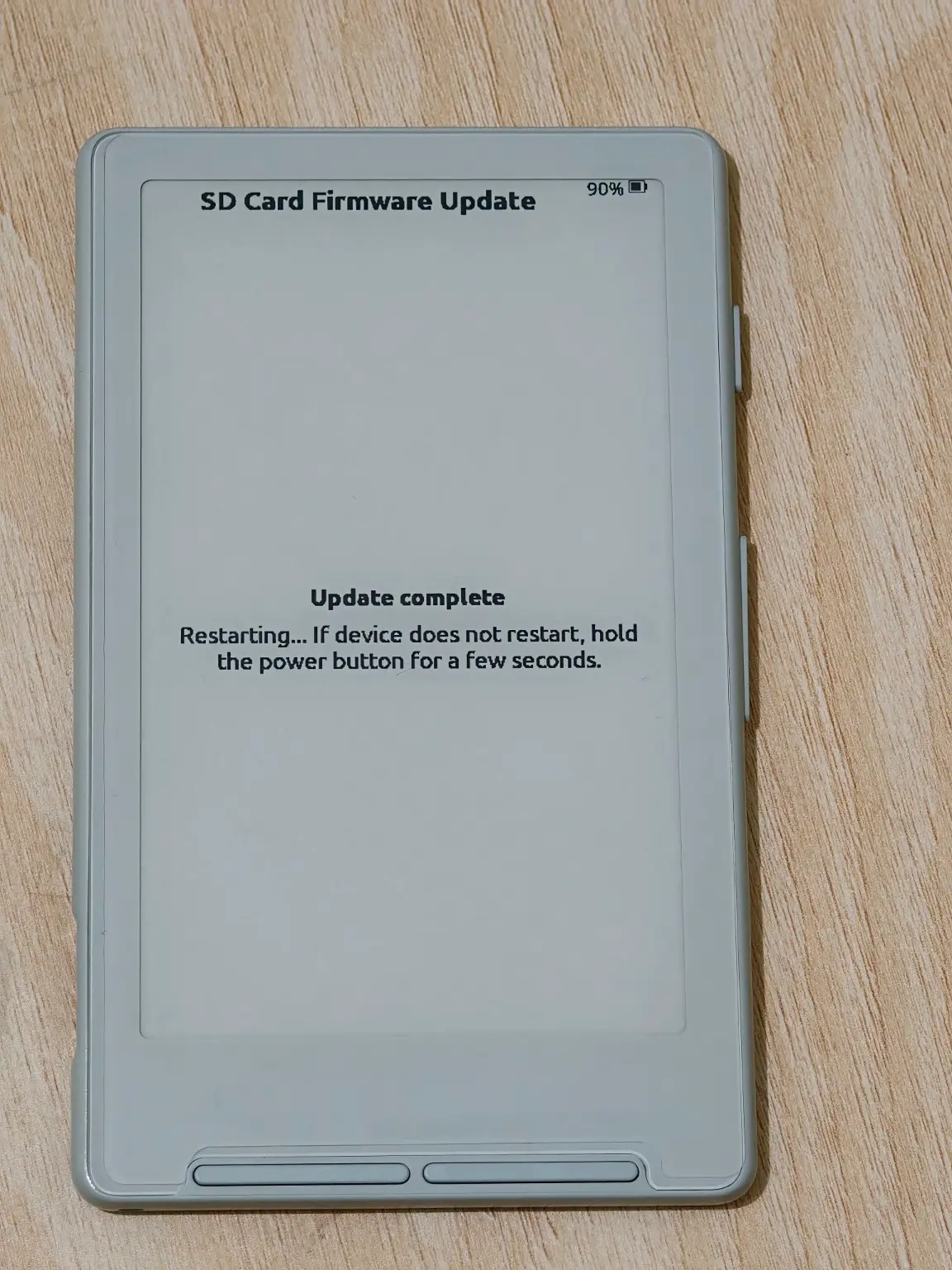
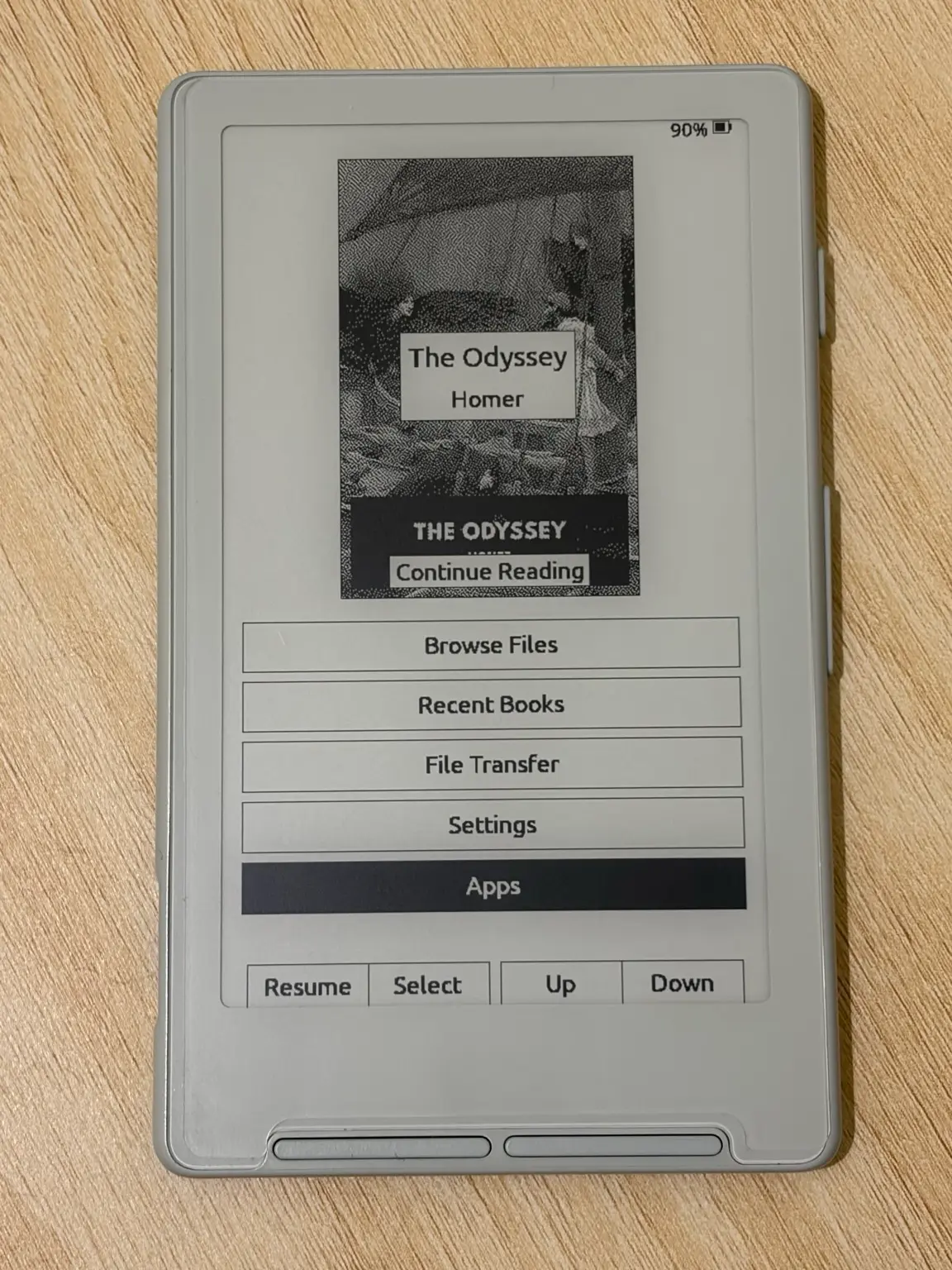
7. Open Project GOTO
After reboot, the CrossPoint home screen has an Apps entry. Open Apps, then select GOTO. In the evening it reads TOGO, after the evening edition.
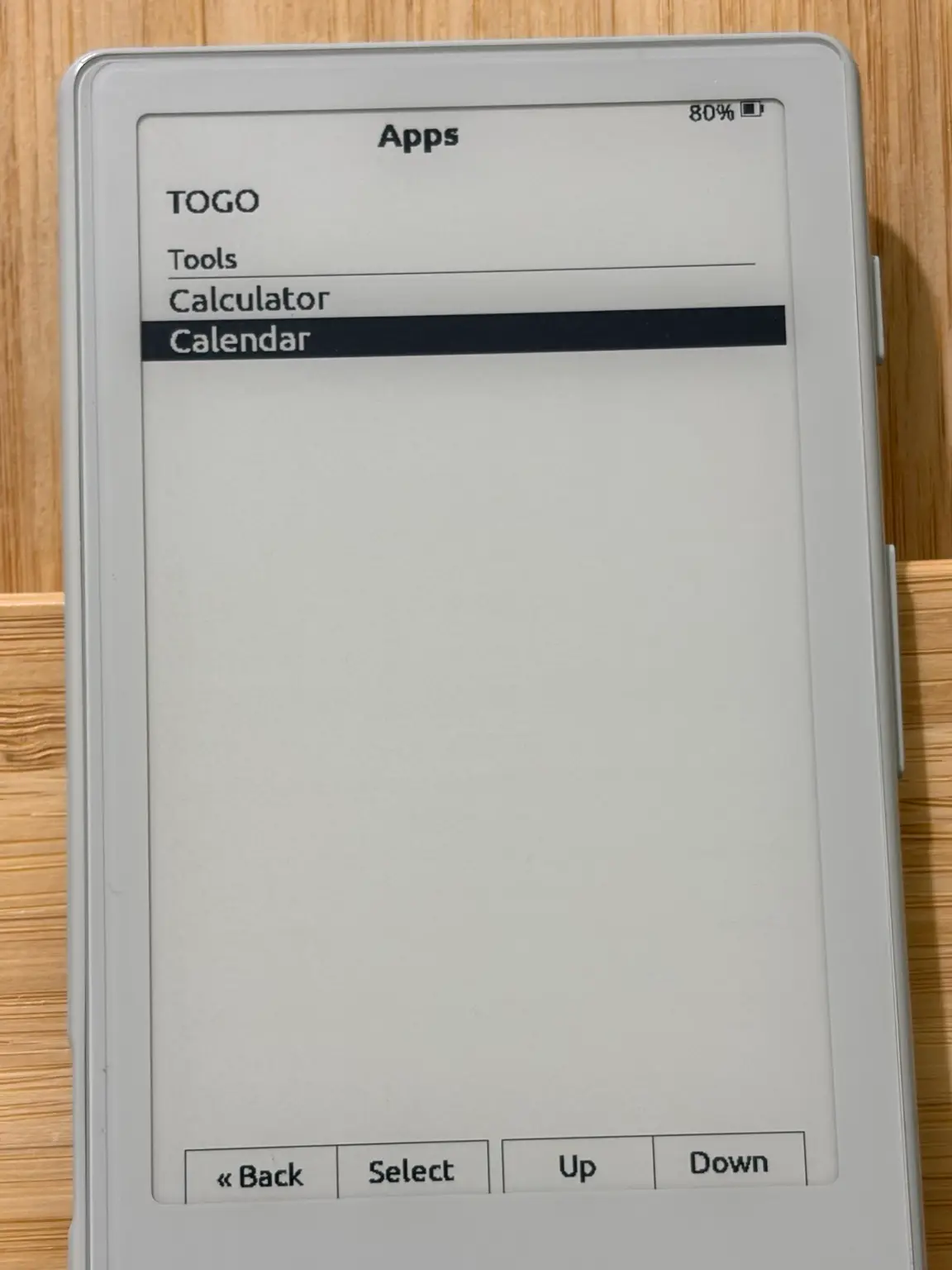
You can also confirm the installed version in the Settings header:
1.6.0-A1.0.6-G
1.6.0 is the CrossPoint base, A1.0.6 the release, and
G the package (GOTO).
First launch
Open Apps → GOTO.
If the X4 is not connected to Wi-Fi, GOTO opens CrossPoint’s Wi-Fi screen first. It tries your saved network; if that does not connect, choose your network from the list and select Connect.
Once connected, Project GOTO retrieves the current edition from the hosted service and saves a local cached copy.
Press Back on the Wi-Fi screen to skip it. The last cached edition stays readable without a new fetch.
Using Project GOTO
GOTO is the morning edition, normally published around 06:00 PHT.
TOGO is the evening edition, normally published around 18:00 PHT.
Each edition contains a limited set of story leads. There is no endless feed.
- Previous / Next moves between stories.
- Full Story opens a QR code for the original article.
- After the final story, the edition page shows a QR code for the whole GOTO or TOGO companion page.
- The edition page is not counted as an additional story.
Stories and reporting remain with GMA Network and GMA News Online. Each article link opens the original source.
Updating
From v1.0.2 onward, new releases install over Wi-Fi: connect to Wi-Fi, then open Settings → System → Check for updates. The update keeps the same package you installed.
You can also repeat the microSD steps above with a newer file.
Rollback
If you kept an official CrossPoint firmware image on your microSD card, you can use the same SD Card Firmware Update screen to select it.
This is the intended rollback path.
Use only official CrossPoint firmware intended for your exact XTEINK X4 model or revision.